

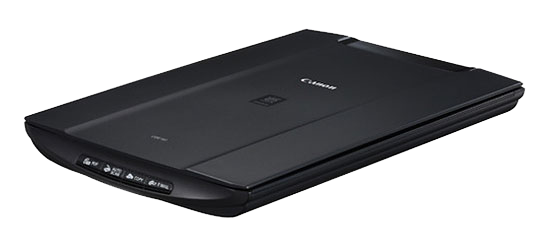
In recent months I’ve encountered several problems where people have contacted me asking for help getting their USB scanners working on new PCs. In each case the new PCs have come with Windows 7 x64, and the scanners have been USB devices produced by Canon and Nikon. Both of these imaging specialists have seriously dropped the ball on supporting products, including some quite expensive premium kit from not all that long ago.
Update: this guide has been updated for Windows 10
The 2 most recent devices I’ve had to fix have been a Canon CanoScan LIDE 50, and a Nikon CoolScan IV ED. The Canon is a fairly standard flatbed scanner, and the Nikon is a slide scanner.
1. The first solution, is a universal option, which supports a lot of scanners on Windows 7 x64.
- Download VueScan from Hamrick
- Connect the scanner
- Install it
- Uninstall it
- Open device manager (right click on my computer, choose properties, click on device manager link on left hand side)
- Find the scanner (unknown device usually)
- Right click, and select “update driver software”
- Choose “browse my computer for driver software”
- Click browse and browse to c:\VueScan
- Click next etc until finished
- Download and install the scanner application from the manufacturer, but don’t install the drivers
2. The second solution, which I was able to use for the Canon, is a specifically made driver
- Download the customised driver courtesy of webwhitenoise
- Install via device manager
- Install the Canon Toolbox




Can you help with a canon 9900f to work with windows 7 32 bit.
Installed everything and can not make it work with canoscan lide 20 and windows 10. Vuescan installed and the canoscan software when I select the twain origin Vuescan 1.0 says is not possible to select it. So I can not scan yet…
If your scanner has suddenly stopped working then try checking and updating your “PATH” variable (as described in this thread — https://www.tenforums.com/drivers-hardware/46516-unable-open-twain-source.html)
Tried the 1’st approach and I only managed to install the driver, so it is not complaining in the device manager. However for the proper functioning it needs the TWAIN part, which is not available when you install scanner toolbox. Tried with the CanoScan Lide 20.
Dear Jon, I have an old PC running Windows 7, I received a Canon Canoscan LiDE20 from a friend. Not compatible with their computer. They could ot supply the drivers. I’m trying to get this to work. What do you suggest?
Esto no me sirvió. Yo tengo un ColorPage-Vivid 1200XE y esta cosa no me funcionó para instalarle el controlador..
Thanks for the info, manage to use option 2 method to make Lide50 to work under win10 x64
Very good suggestion. I could not pursue the second option becasue the drivers were unavailable.
Used Vuescanner software on Win 10 x64. Didn’t work at first, had to disconnect and reconnect USB and restart the software. No need to pay for the software. Just take a screenshot of the scan and use that to save to file.
Vuescan simply isn’t an option. It is overpriced, more than the hardware is (an all in one printer/scanner street price is under 25 dollars US). It seems that Software developers think they own the world as of late. Even the people Ive worked with in the IBM AS400 arena are not as greedy.
Easy solution is to use the LIDE 70 x64 drivers, LIDE70 canoscan toolbox software and vuescan. just install both, connect your LIDE80 and vuescan will use the LIDE70 softwares while recognising your LIDE80 as being attached
There are also some VueScan based files linked from https://www.driverscape.com/download/canoscan-lide-20-n670u-n676u (the second link, not the ad at the top) which may work for some people
If there are still any guinea pigs out there here is a link to a fresh attempt to get the canon drivers working for the LiDE 20 on Win 7 x64. Don’t hold out too much hope though. But do please let me know how you get on. Cheers
Try 5: https://www.dropbox.com/s/fwb34tdk5o6jsae/lide20_x64_try_5.7z?dl=0
Try 6: https://www.dropbox.com/s/7w1tblzhmrhjtts/lide_20_x64_try_6.7z?dl=0
Try 7: https://www.dropbox.com/s/0370qenvk5nnwpl/lide20_x64_try_7.7z?dl=0
For those people wanting to experiment — these still don’t work for the LiDE20 but it’s the closest I got…
https://www.dropbox.com/s/fjpv56fgkyny6lk/DIYMH_Canon_LiDE20_x64_Driver_alt.7z?dl=0
Additional information…
The modified driver by “DNA” claims to have 4 modifications
1. Insertion of Hardware ID
2. Insertion of Device ID
3. Replacement of LiDE 60 Colour Profile with correct LiDE 50 ICC file
4. Insertion of correct flatbed scan area dimensions and imaging capabilities
The device and hardware ID changes are made in CNQL60.inf
The colour profile file is CNS12Z.icc which is in the CNQL60 subfolder
I wasn’t able to find a change to account for #4 — which is what I think stopped my 4th attempt from working
So — I’ve checked every file for any binary changes
All of the files in the root (except the inf) are identical
All files in cnq_x64 are identical
all of the files in cnql60 (except the icc) are identical
All of the files in CNQSG111 are identical
So only 2 files have changed — the .icc colour profile file and the .inf
Furthermore
The icc file has been copied (unmodified) from the 32bit Lide50 drivers. So the DNA driver consists of the Lide60 x64 driver, with the colour profile from the lide 50 32bit drivers. And a modified INF file. So, making a modified lide 20 driver (if possible) should consist just of copying the Lide20 32bit colour profile (icc) file and making the right modifications to the INF file
Hi Jon. I’ve only just noticed these newer replies, thanks for these. I would still like to experiment, however after your comment on 20th Sep that you never got the drivers working I chucked my N670u scanner (which I bought at a car boot sale this summer for a quid) in a box in the corner of my garden ready to take to the tip when i next go. That tip trip has yet to come, so technically I still have the scanner — though I’m not too sure the last 2 months outside will have been kind to it.. if they have then I will have a play with the drivers soon 🙂
Hi. I’m very keen to try the N670u (lide20) driver, but the FTP link is not working. Is it possible to re-upload the file please? Cheers, Rich.
I just used the link below and it still works and ulitmately guides one to the XP mode download page https://www.microsoft.com/en-us/download/details.aspx?id=8002
Many thanks for the reply, good to see this post is still active 🙂 , I had previously read about using XP mode, but was trying to avoid that. What I was hoping for was a new link for these files, so I could try them:
http://ftp.diymediahome.org/DIYMH_Canon_LiDE20_x64_Driver_alpha4.7z
http://ftp.diymediahome.org/DIYMH_Canon_LiDE20_x64_Driver_alt.7z
Specifically, I think the http://ftp.diymediahome.org FTP server is no longer active, but perhaps someone has copy of them, or Jon could re-upload elsewhere.
Hiya. I never managed to get the various hack attempts working so I took them down.
busco drivers para canon N670U info porfa me urge
Muito obrigado!! Me salvou!!!
Hi, is there an update here on getting the LiDE20 working with Win 7 64bit ?
AWESOME!!!! Thank you and thanks to the guys who made VueScan!
VueScanner: Truly great solution.
VueScanner cost$ –> I am running windows 7 64bit and was able to use my CanoScan N670U by Installing Windows XP Mode in Windows 7 at no additional cost
https://windows.microsoft.com/en-us/windows7/install-and-use-windows-xp-mode-in-windows‑7
After install the software loaded and the only trick was to click the “USB” dropdown in the virtual machine menu at the top of the screen and select canoscan
Hello Jon,
I’ve followed this conversation with great interest as I have the same Problem with my N670U and Win7x64.
I’m wondering if there is a final result yet or if you need someone else to test your efforts?
I haven’t got anywhere with this in a long time, but recently came back to it. There are some indications that the Lide20 might work with a hacked Lide25 driver, although I’m fairly sceptical about the chances of success. I’ll look at building some new test candidates over the next 2–3 weeks. If anyone has a Lide20 they’re willing to test with that would be great. If I can get a lide20 driver going then a N670U should also work with the same hack — i believe it uses the same drivers as the lide20
Hi Jon, i was wondering if you were got Canon Lide 20 Drivers to finish and working. I was trying to test your latest build from post below, but your ftp is down. I was not able to download to try. If you have finished modding the drivers and have them working.. Is it possible if you can provide a link. Thank you in advance
First option dies not work. When I uninstall the scanner, device manager does not detect it any longer, not even as “unknown device”, it simply does not exist under Windows. So, no chance to update driver software or anything.
Uninstall it how? Its very unusual for Win 7 not to see the hardware at all. What physical connection does the scanner use?
@Jon Scaife
Help me please 🙂
I’ve a CanoScan LIDE N670u (CanoScan LIDE 20) but your server ftp is down. were I can download your drivers?
many thanks in advance
ftp://anonymous@diymediahome.org:anon@ftp.diymediahome.org/DIYMH_Canon_LiDE20_x64_Driver_alt.7z for the 3rd try.
This torrent work with me 100% for CanoScan LIDE 20 for Windows 7 64bit
[link removed]
Thanks for the link Mohammad, but VueScan is commercial software; a link to a torrent of it could get us in trouble so I’ve had to remove it. VueScan will of course work — it is an excellent solution if you’re happy to pay for it 🙂
I have a ‘Epson Perfection 1260 Photo’ scanner, which is a 32-bit scanner. I have now bought a Windows 7 64-bit computer and Epson tells me they have not modified the drivers of this scanner, so I cannot use it. Any help will be greatly appreciated.
Hello Jon,
I am struggeling since 2 weeks to use a Canon Lide 80 device with my new 64 bit Windows 7 Dell PC. The deeper research I found in the web about the subject is your hereby post and I am wondering if you had the chance to push this work further to get something workable ?
Many thanks in advance for your appreciated effort.
I’ve tried both of these approaches and neither worked for me so far.
The VueScan worked great as long as I used the scanner application that came with it, but it covers all images with watermarks, unless you buy the paid version, which I can’t afford.
I tried to use CanoScan Toolbox with it, but when I choose ‘Save’ and hit Scan, I’m prompted to ‘Select Source’ and it displays VueScan TWAIN 1.0 (32−32). I click Select, and get an error message ‘Unable to select TWAIN source’.
When I click on Scan‑1, then Scan, it prompts me to ‘Specify a program where the scanned image is transferred’. Why would I ‘transfer’ it to a program? I have no clue what that means. I simply want to scan and save to my desktop.
I found the installation of DNA very confusing. I plugged in the scanner, extracted the files, and hoped Windows would find the driver on its own. No such luck. I finally located it, and for a moment it was recognized by the system. I tried CanoScan and had the same problems I had with VueScan. After I unplugged the scanner and plugged it back in, the driver wasn’t recognized at all anymore.
The DNA driver is apparently unsigned, so Windows 7 64-bit doesn’t seem to like it. The developer at the link you posted said that you have to log on in safe mode every time and turn off something in Windows so it will recognize it. That’s way too stressful to me, especially since Windows flashes threatening popups discouraging this behavior.
Before all this, I tried to install the Canon LiDE60 driver, which I’d heard works with LiDE50, but I’m not sure I installed it correctly. I can’t find it anywhere in my system.
Has anyone figured out any other option? The VueScan worked great, but the scanner software didn’t, so maybe there’s some workaround to use only the driver, with some other software that will recognize the driver?
Thanx so much for any new insight anyone might have.
I’ve sent you something to try. The DNA driver IS the modified ’60 driver. I don’t know where you heard that it requires safe mode — I can assure you that it doesn’t. Windows WILL warn you when you first install the driver but you can choose to install anyway. Extract the files and then install it thru device manager. If you don’t know how to install drivers via device manager let me know I’ll do a step-by-step for you
The best solution I have found is to install a virtual machine running Windows XP: if you have kept your old XP disk and the license number from the bottom of your old PC, then it is relatively easy to set-up using VMware player using these instructions on EduGeek
Once installed, you can basically start Windows XP in a window, and install your old scanner driver (and any other XP software for that matter) and it all works like a charm!
This is an option Olivier but I think its a bit like using a sledgehammer to crack a nut — running a whole virtual PC just for your scanner is quite a lot of hassle especially when you take into account the need to install security updates for both VMware and the copy of Windows XP installed within it! You also either need the Pro, Ultimate or Enterprise editions of Windows Vista/7/8 or you need a valid Windows XP serial number. As a last resort it will work but if at all possible it is better to get the scanner working natively in Windows 7 which is what this post is focused on. That said — thanks for the link — I’m sure it will be useful to anyone that needs the last resort option. For those that don’t have an XP serial but DO have Professional, Ultimate or Enterprise you can do the same thing via “Windows XP Mode” which is available to download for free from Microsoft. Cheers.
Did not “work like a charm” for me. I installed windows xp mode and even though my Brother mfc6490cw is installed with old drivers and all, it does not work under this virtual environment. XPmode is cumbersome, slow as snail, I don´t even get more than 10 fps playback on my linetester.
I am a cartoon animator, I use this A3 scanner to scan in my drawings. I upgraded to windows 7 and even though Brother offers a 64 bits driver for the machine, it is not 100% twain compatible, causing my animation software to freeze when I try to scan in some drawings. I do not recommend windows XP mode, it´s like going back to windows 95… everything is a problem.
Keep Working my friend for resolve this compatibily problem in windows 7 64 bit. For me it´s much better the twain drivers for the scanner Canon Lide 20 than VueScan.
Hi,
found that post after some long investigation on how to get my Canoscan N670U to work with Windows 7 Prof x64. I used your first idea. My computer now recognizes the scanner. But neither the Canon Toolbox nor Irfan View can find it as a twain source. Am I doing anything wrong? I’m using the Canoscan Toolbox 4.9 and I used the latest version of Vuescan. Which I completely removed, after the driverinstallation (I even deleted c:/vuescan).
With the Nikon the software I used was Nikon’s own software, which found the scanner fine. I’m not sure why you’re not getting twain access — VueScan does provide a twain driver. What is your scanner identified as in device manager? If you click on the driver tab and driver details button what files are versions are listed there?
Hey there, thanks for your fast response 🙂
It’s being identified as Canon LiDE20, which in fact used the same drivers as the N670U in former windows-versions. It says, that the Scanner is working fine.
On the first page of properties it says:
Manufacturer: not available
Model: Cano Scan
Modelnumber: not available
Category: Scanner
Description: not available
On the page “Hardware” it says:
Manufacturer: Hamrick Software
If I click on Properties->Drivers:
Drivermanufacturer: Hamrick Software
Driverdate: 11.01.1999
Driverversion: 1.0.0.0
On Details it says:
Driverfiles:
C:\Windows\system32\drivers\ksthunk.sys
C:\Windows\system32\drviers\usbscan.sys
I hope I translated everything right, because my windows is in german language. If not, I hope you understand everything I wrote, otherwise feel free to ask, my english isn’t that good 😉
Thanks in forward for your help!
I wonder if it’s possible to rehack the drivers to work with a LiDE20 as well as LiDE50. Can you send me the hardware ID for the scanner? It should look something like “%LPTENUMCNQL25.DeviceDesc%=CNQL25Install,USBVID_04A9&PID_2220” — its found in device manager, device properties, details tab, and in the pull-down box change from “description” to “hardware IDs”. I’ll see if it’s possible to hack something together
Wow, that would be simply amazing! Okay, I think I’ve found the information you asked for. There are two IDs:
USB\VID_04A9&PID_220D&REV_0100
USB\VID_04a9&PID_220D
Again, thanks in advance! 🙂
OK. No promises yet, but give this a try for me and let me know how you get on.
ftp://anonymous@diymediahome.org:anon@ftp.diymediahome.org/DIYMH_Canon_LiDE20_x64_Driver.7z
Use them as per the instructions for option 2 above — so install them via device manager and then install the canon canoscan toolbox for vista x32 (from https://files.canon-europe.com/files/soft25829/Software/s7117ENx.exe. If it seems to work check that it is using the correct scanner area — it might not be
Hey there,
again, thank you very much! 🙂
I did it as you told me and the devicemanager still says, that it’s a Lide 20. When I start Canoscan Toolbox, it says, there would be a Lide 50. When I try so start scanning it says: “Cannot communicate with scanner. Cable my be disconnected or scanner my be turned off. Check status. Scanner driver will be closed.”
Well, the scanner is connected, so it should work. Any ideas?
Greetz
When I clicked Ok there, there appears another message:
“Unable to open TWAIN source. Please check connecten. Then re-start Toolbox.”
OK, I’ll have another look and see if I can work out what tweak I’ve missed
OK — Try downloading the file a linked above again, re-extract, reinstall via device manager and let me know how that goes.
If that doesn’t work I’ve got a 3rd version you can try. Download ftp://anonymous@diymediahome.org:anon@ftp.diymediahome.org/DIYMH_Canon_LiDE20_x64_Driver_alt.7z for the 3rd try.
Cheers
Great, I’ll give it a try now 🙂
Thanks again for your work!! 🙂
Hello again,
I’ve got some bad news 🙁
With your 2nd version of the driver, I get the same error as with the 1st version.
When I try your 3rd idea and tell the device manager to install the driver, it says, that there isn’t any driver to work with my scanner.
Greetings
Sorry — my bad — there was a typo in the 3rd attempt — please retry it 🙂
Hello again :),
version 3 is definitely one step forward!
This is what happened:
After I had installed the driver, the scanner startet making some noises, I think he calibrated itself? He did the same thing after the reboot again, that didn’t happen with the first two versions.
In Canoscan Toolbox I was able to chose between “CanoScan LiDE 20 11.0 (32−32)” and “CanoScan LiDE 50 1.1 (32−32)”. When I chose LiDE 50, the same thing happens as before. But when I chose LiDE 20, the scanner makes some noises again, when I open it, the scan-thing und er the glass turns on the blue light and moves like 5mms forward. Then I get the following message (canoscan as well as irfanview): First windows: “Cannot communicate with scanner. Cable may be disconnected or scanner my be turned off. Check status. Scanner driver will be closed.” When I click ok: “TWAIN error! Can’t connect to device or the TWAIN driver is not installed!”.
Again, thank you very much! 🙂
Btw, the light might also have another color, like white or something, I’m colorblind 😉
Hi, I have a Windows 7 x64 bits French, if you need an another Canon Canoscan Lide 20 for tests, i am there.
Thanks Progi. And Lupo — thanks for your patience. I’ve exhausted the easy ways of trying to fix up a driver, so now I’m digging around trying to find another way. I’ve got a very busy week next week but a couple of weeks holiday after that, so hopefully I’ll get back to you in the next 2 weeks. Sorry it isn’t sooner.
No need to apologize 🙂 Thank you very much for the work you do and take your time. If you have anything ready for testing, just let me know =) Thanks again in advance! 🙂
Some news ?
I replied via e‑mail — but it bounced…
Which mail ?
Ah, sorry — my fault. The bounce was for an “illegal attachment” — I didn’t know gmail didn’t allow exe files, even when inside archives? Will send again with a modified extension…
Did you get my e‑mail? Any luck with it?
I’ve finally found time for another look and have tried a few more things. I’m not terribly optimistic, but worth a try. (Note: this is different to what I e‑mailed to you)… 4th attempt
Always the error “Unable to select twain device”… but now the scanner make some sounds like init.
Hi Jon,
thanks a lot for your efforts to get this LIDE scanners working. Any good news? I have some of these Scanners here and tried to get V4 but the ftp link didnt work for me. Can you email please and i try to get it working under w7/64?
Best regards and greetings from germany
Sorry, I did not click reply, my post is on top of the comments, but I don’t want to repost it 🙂
I’ve now implemented a way to fix comment parents, so I’ve made your comment a reply
May I ask for reupload of that drivers (4th attempt).
Hello! Recently, I just connected my Canon LiDE 20 on my new installed Win 7 64bit. I have scrolled up and down in this thread and the problem now is about can’t find the TWAIN source. Is there any hope or possibilty to fix that issue?
Thanks a lot before.